
How it works
Whether you're scrolling on your phone or shopping on your desktop, effortlessly save items from any store into one seamless, shareable wishlist.
Mobile app
Chrome extension
Stop screenshotting. Start saving.
With the Sortd mobile app, easily save items from any online store into your wishlists. Here’s 2 easy ways to save items to your Sortd wishlists:
Save with the Safari extension
Our fastest way to save. The Sortd icon stays with you while you browse, so you can save products with a tap. (Safari only.)
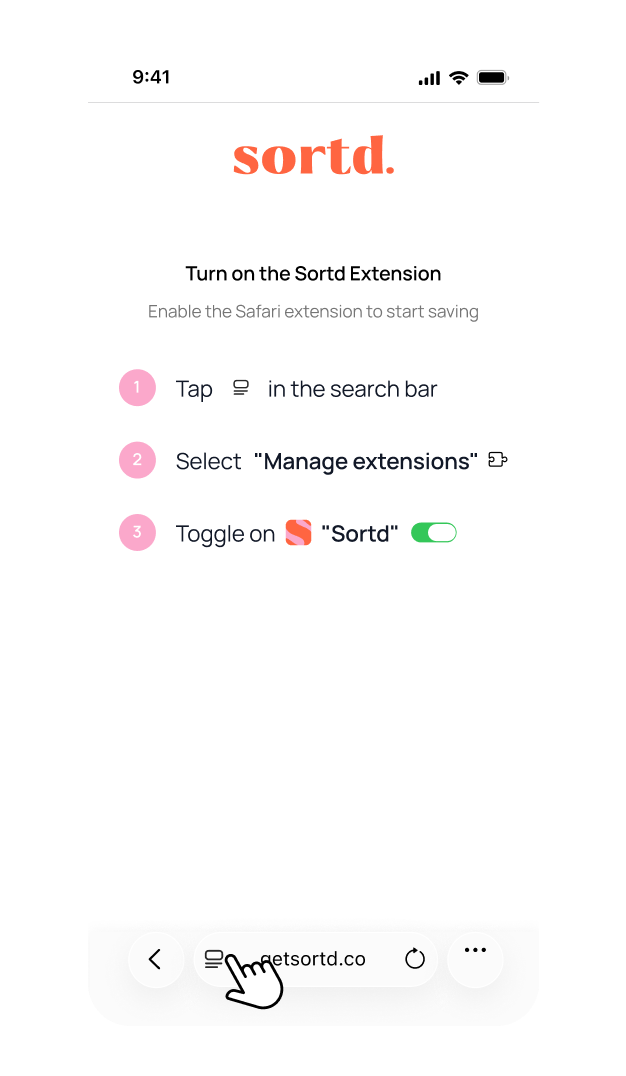
Enable the Safari Extension
1. Tap the Extensions icon
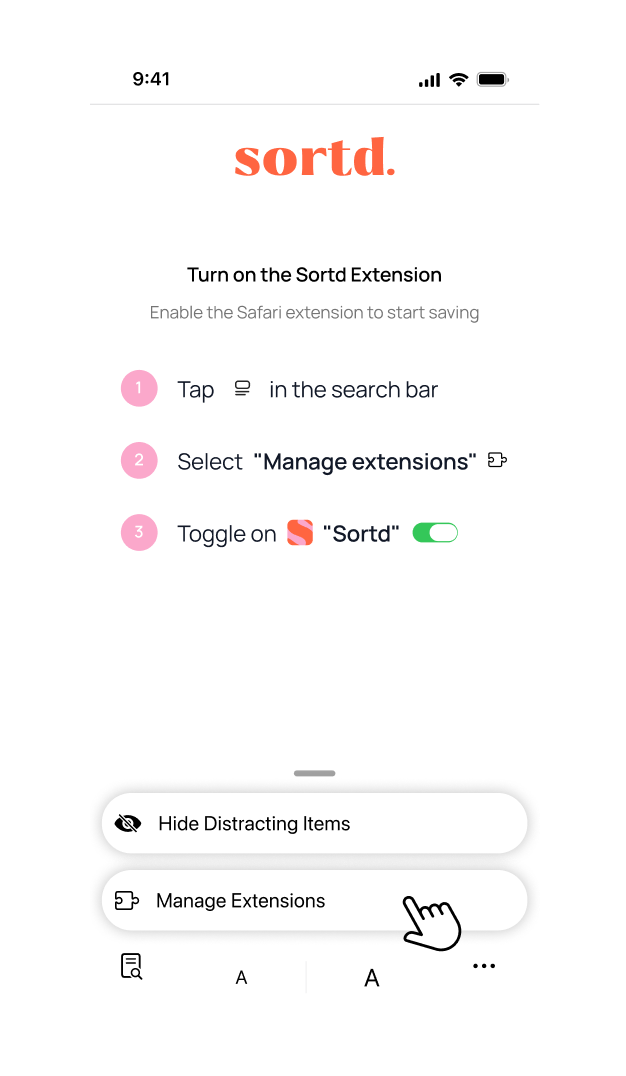
2. Select ‘Manage extensions’
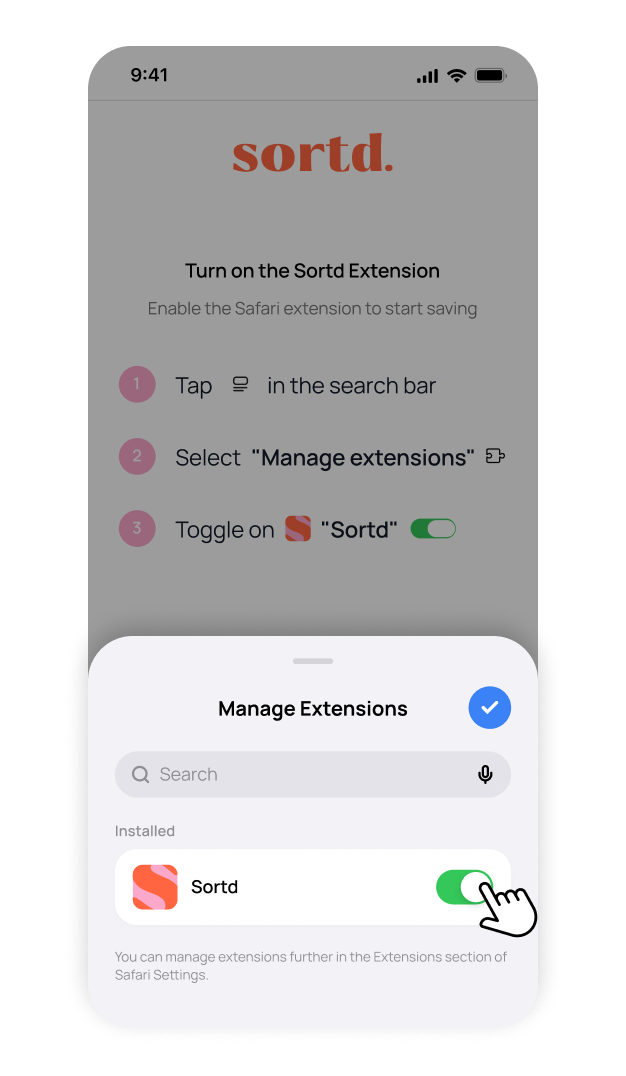
3. Toggle on ‘Sortd’
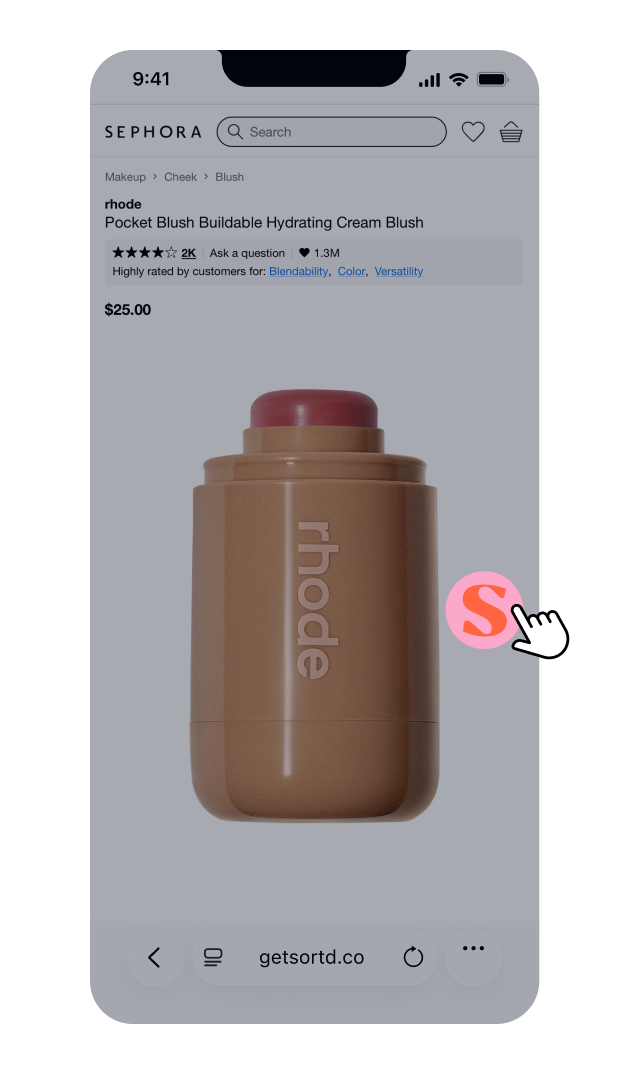
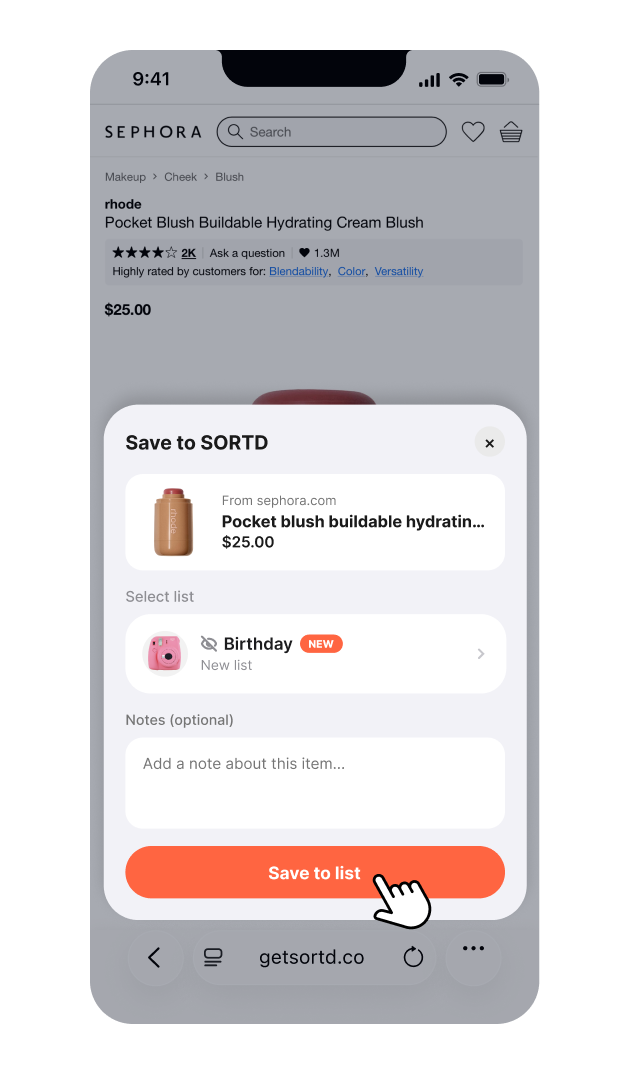
Save an item
1. Tap the Sortd icon
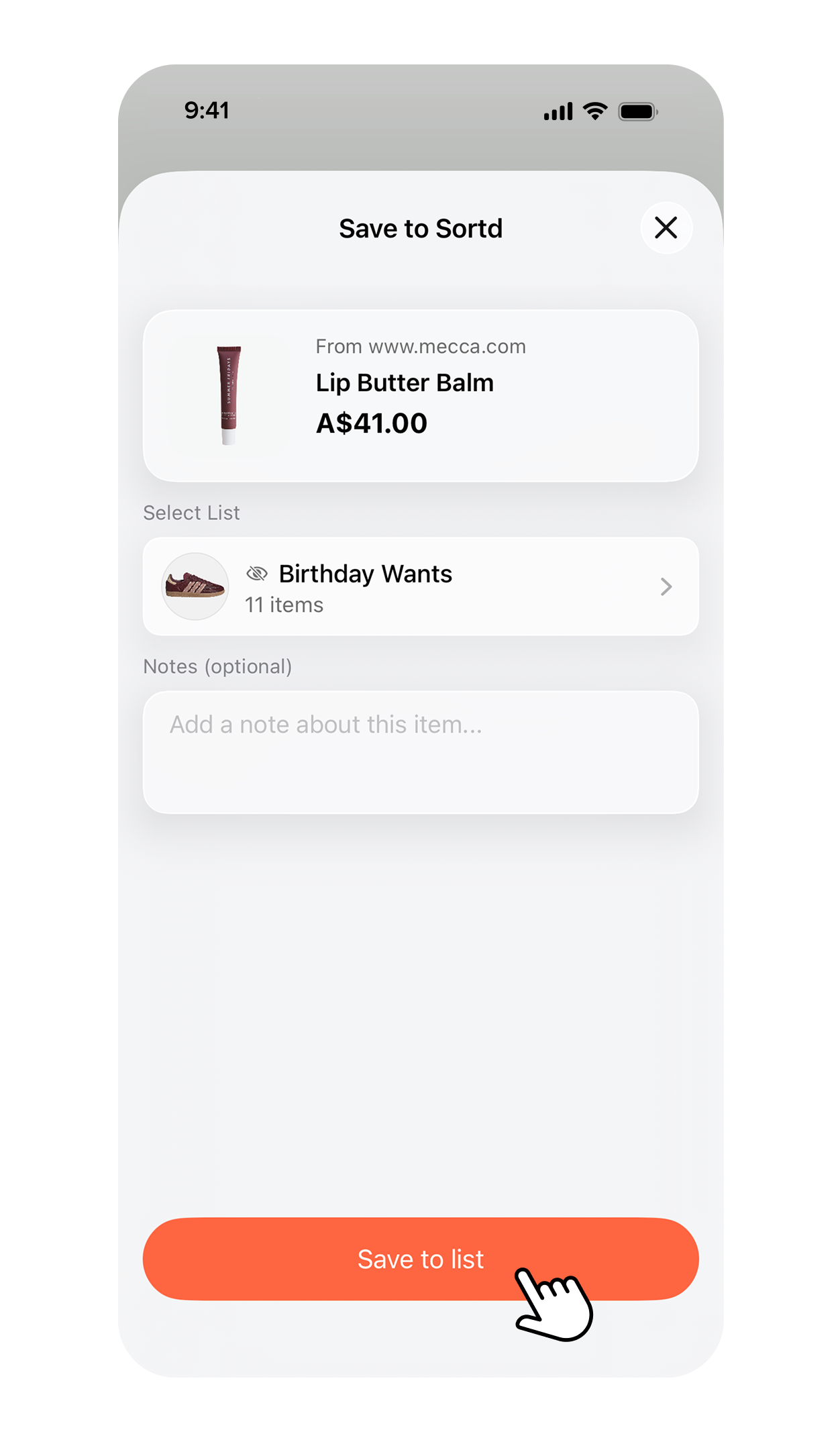
2. Select a wishlist
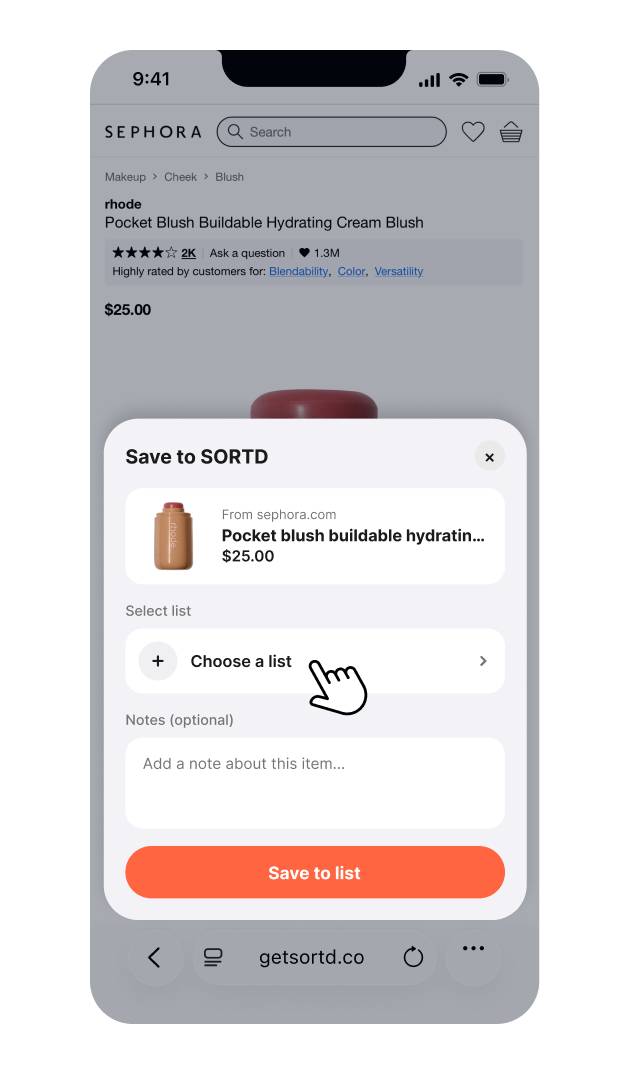
3. Hit ‘Save to list’
Say goodbye to open tabs!
The Sortd Chrome Extension lets you save and organise items from any online store directly into your wishlists as you browse. Easily come back to compare, decide, and buy from your desktop.
STEP 1: Search a store and find an item you want to save. Once you open the item, tap the ‘Sortd’ icon on the right side of your screen to activate the extension.
STEP 2: Create a list or save the item to an existing one - and add notes for your reference later.
STEP 3: Click save to wishlist and visit the web-app to view all your items in one place.
TIP: Right-click on any product page and scroll down to select “Save to Sortd” for a quick shortcut to save items.

Share to Sortd
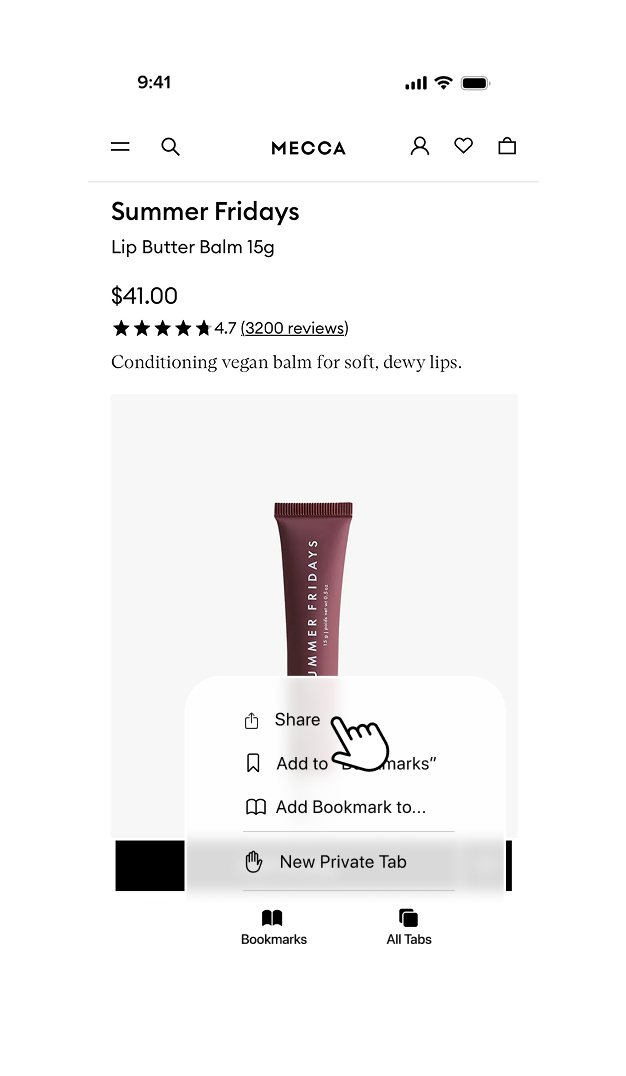
Heres how to directly save from your preferred browser, Instagram, TikTok or your favourite shopping apps.
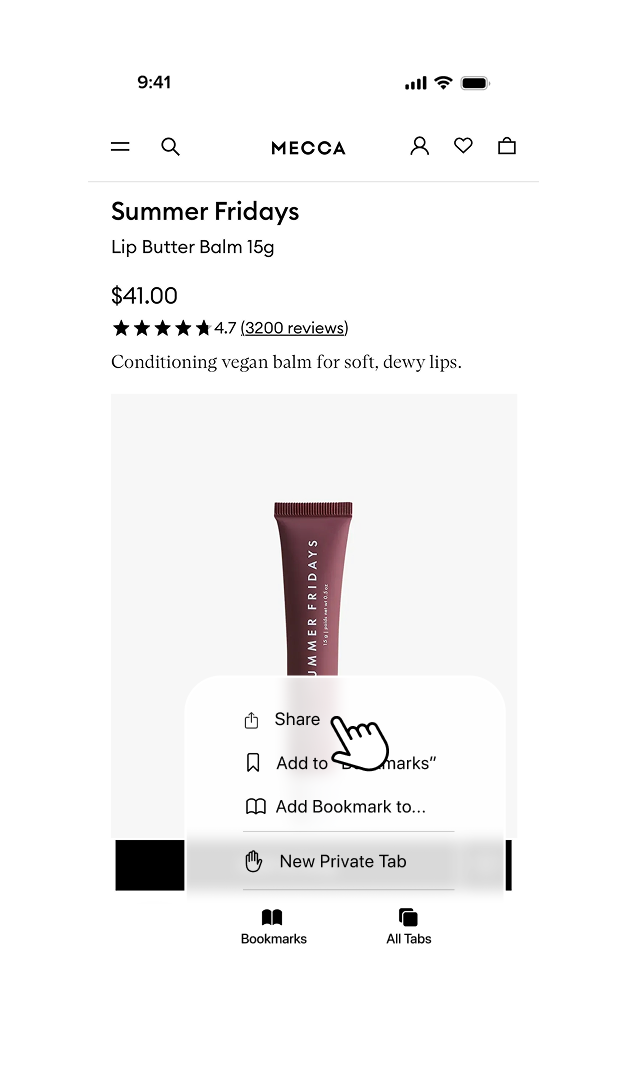
1. Tap the menu (⋯)
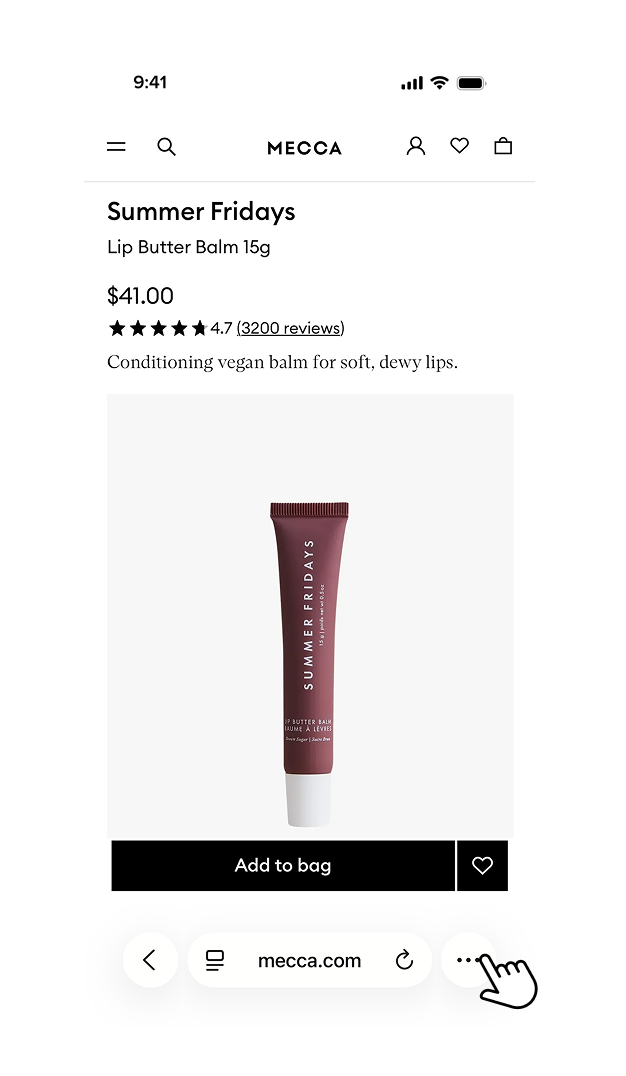
2. Select ‘Share’
3. Choose Sortd
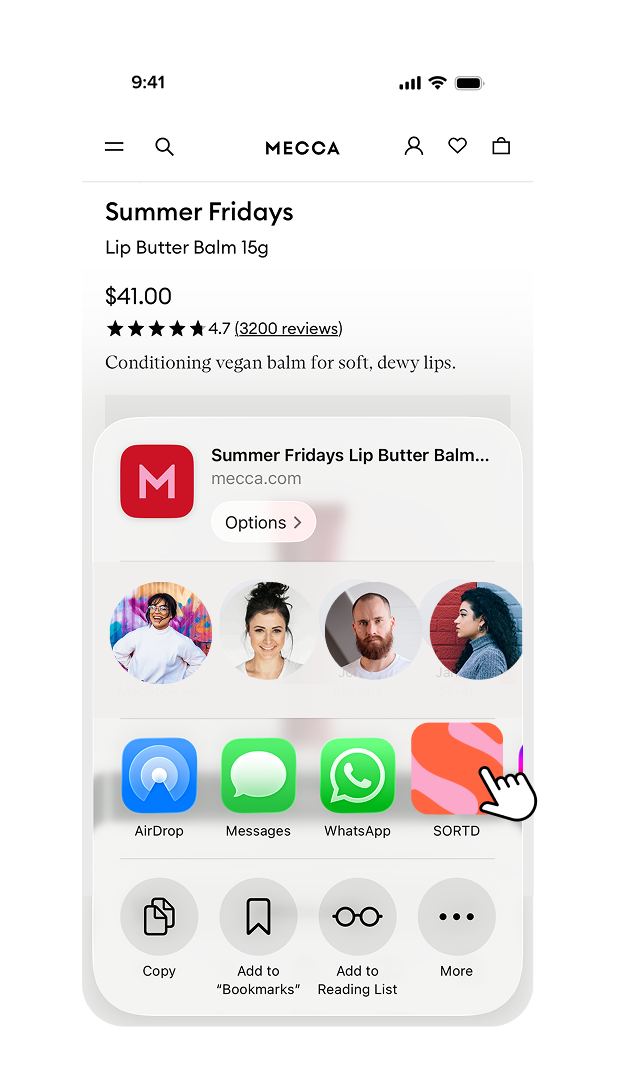
4. Tap save to wishlist!
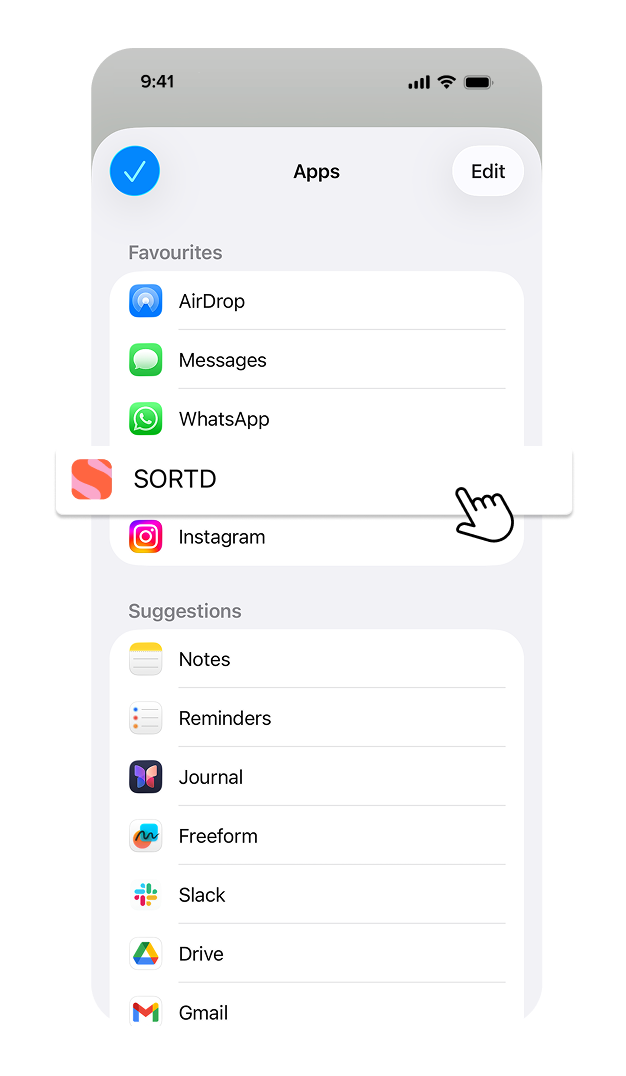
Don't see Sortd in the Share menu?
1. Tap the menu (…) & select ‘Share’
2. Swipe left through your apps and tap ‘more’
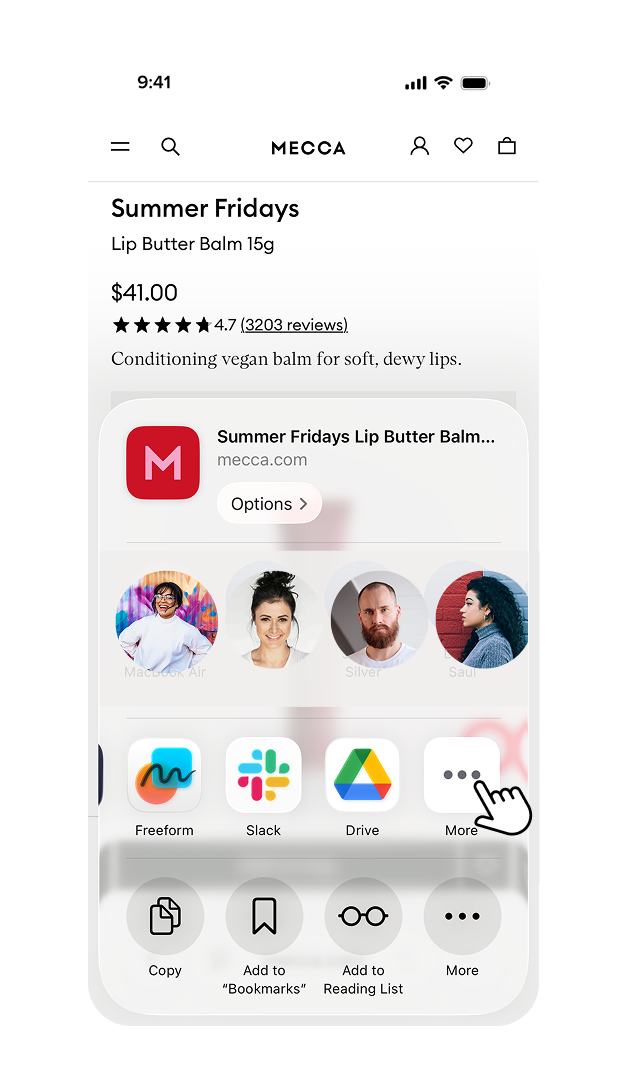
3. Select ‘edit’ and drag Sortd to your favourites
Share your wishlists in seconds
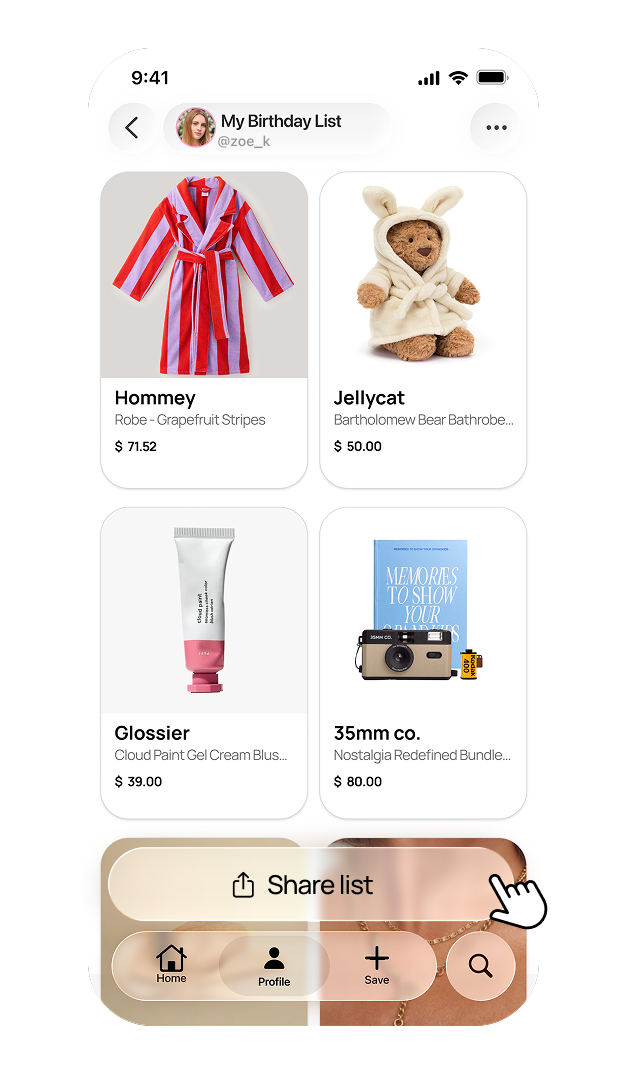
Here’s how to share your lists with friends and family:
1. Tap ‘Share List’ at the bottom of any list
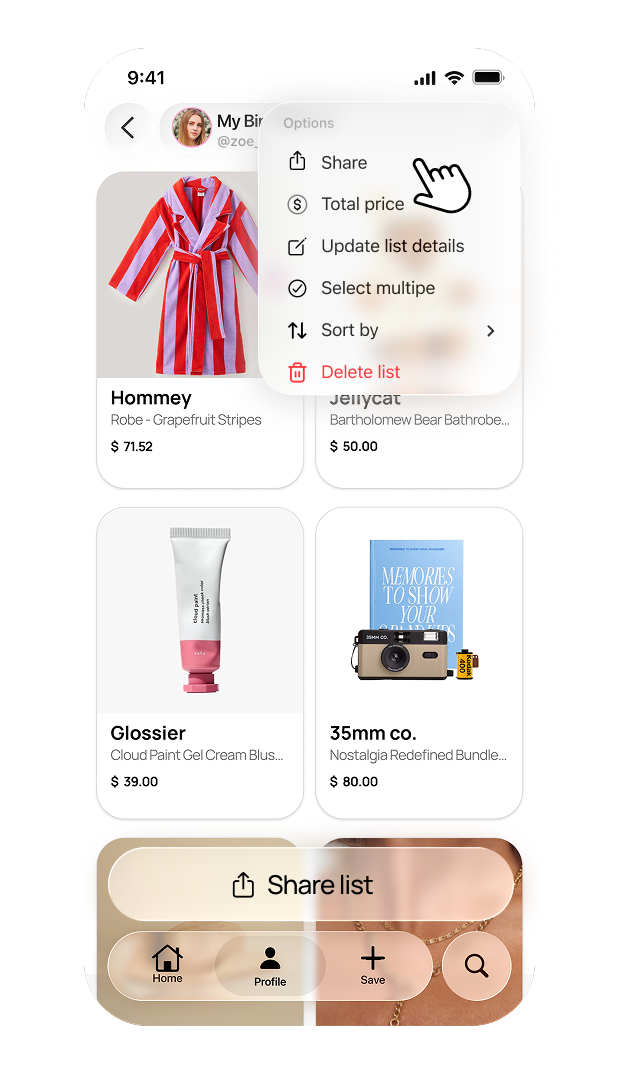
2. or tap the 3 dots & select ‘Share’ from the menu
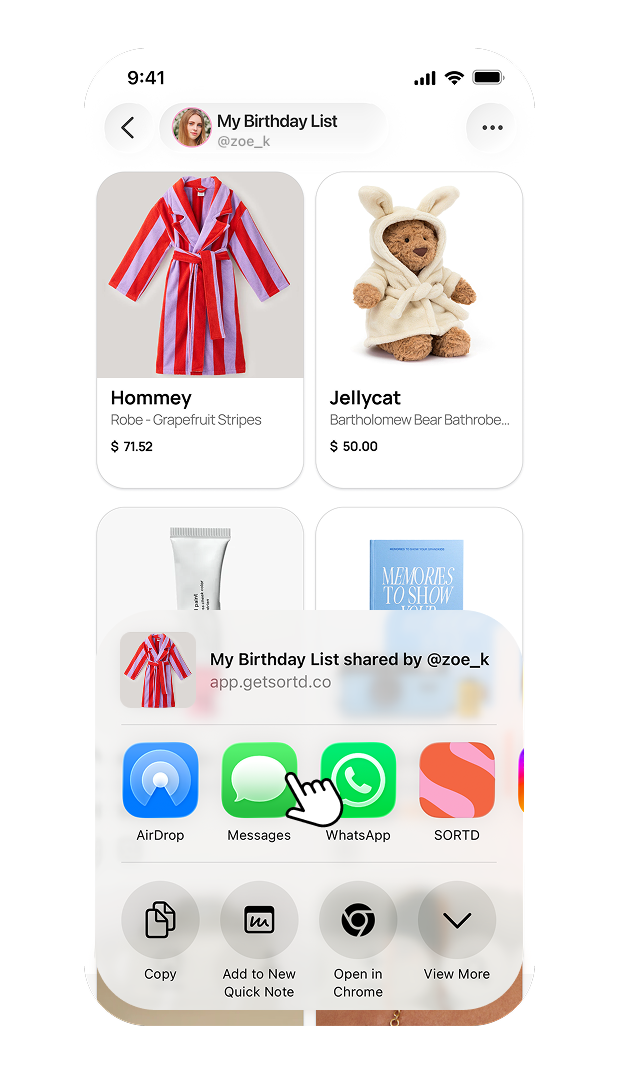
3. Share the list via text, WhatsApp, or socials
Start by creating a list
At Sortd, you can choose from three different list types, depending on how you want to organise (and share) your saves:
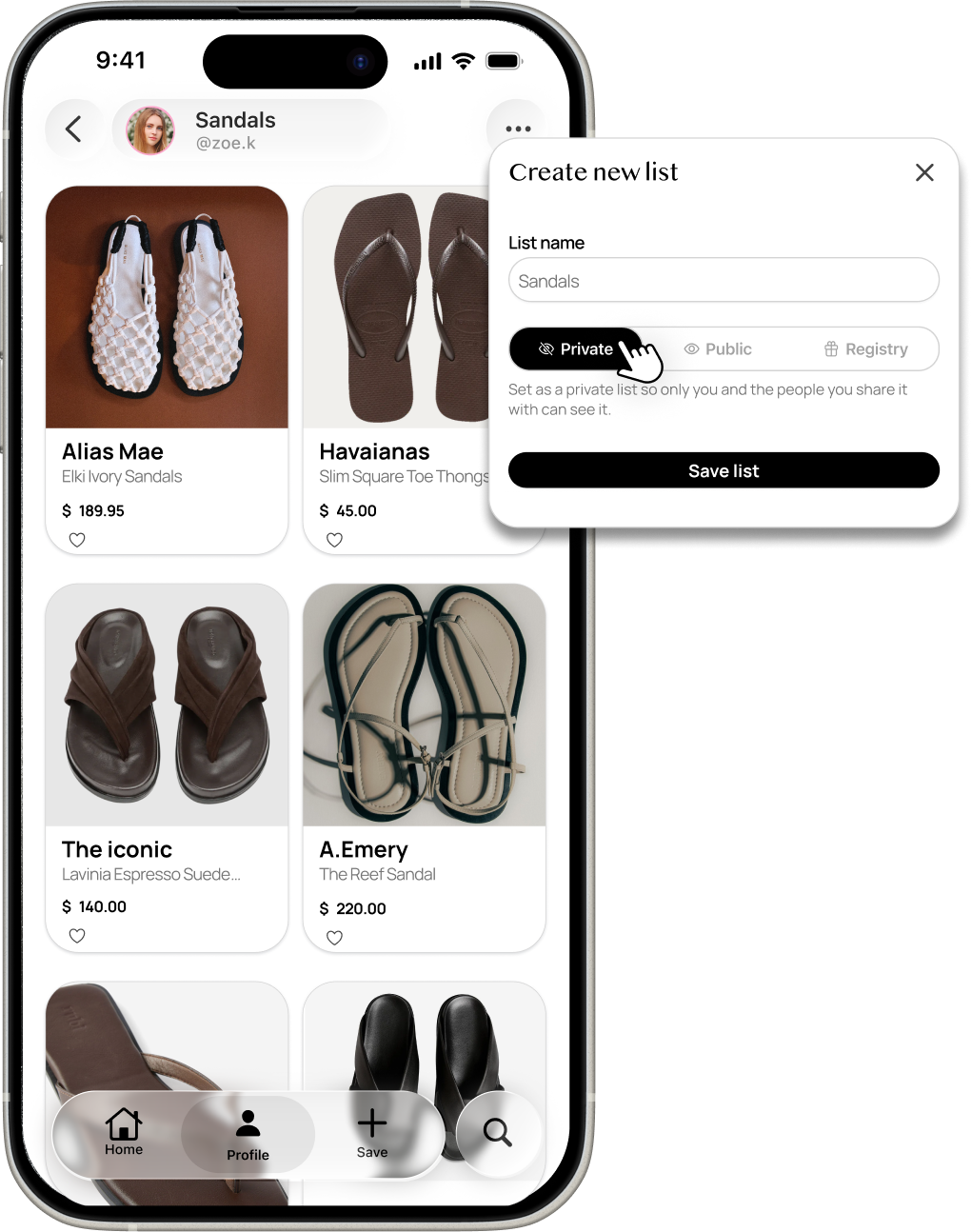
Private lists

For personal saving - with optional sharing for advice.
Private lists are perfect for your own ideas, plans, and wishlists. These lists are only visible to you, unless you choose to share them.
Why create a Private list?
Save items just for yourself
Plan purchases, compare options, or organise ideas
Share with friends or family when you want opinions or advice
Tips for staying organised:
Add notes to capture sizing, colour preferences, comparisons, or reminders
Mark items as purchased to track what you’ve already bought and keep your list up to date
Like items to highlight favourites or prioritise decisions
You stay fully in control - nothing is visible to the wider Sortd community unless you decide otherwise.
Public lists

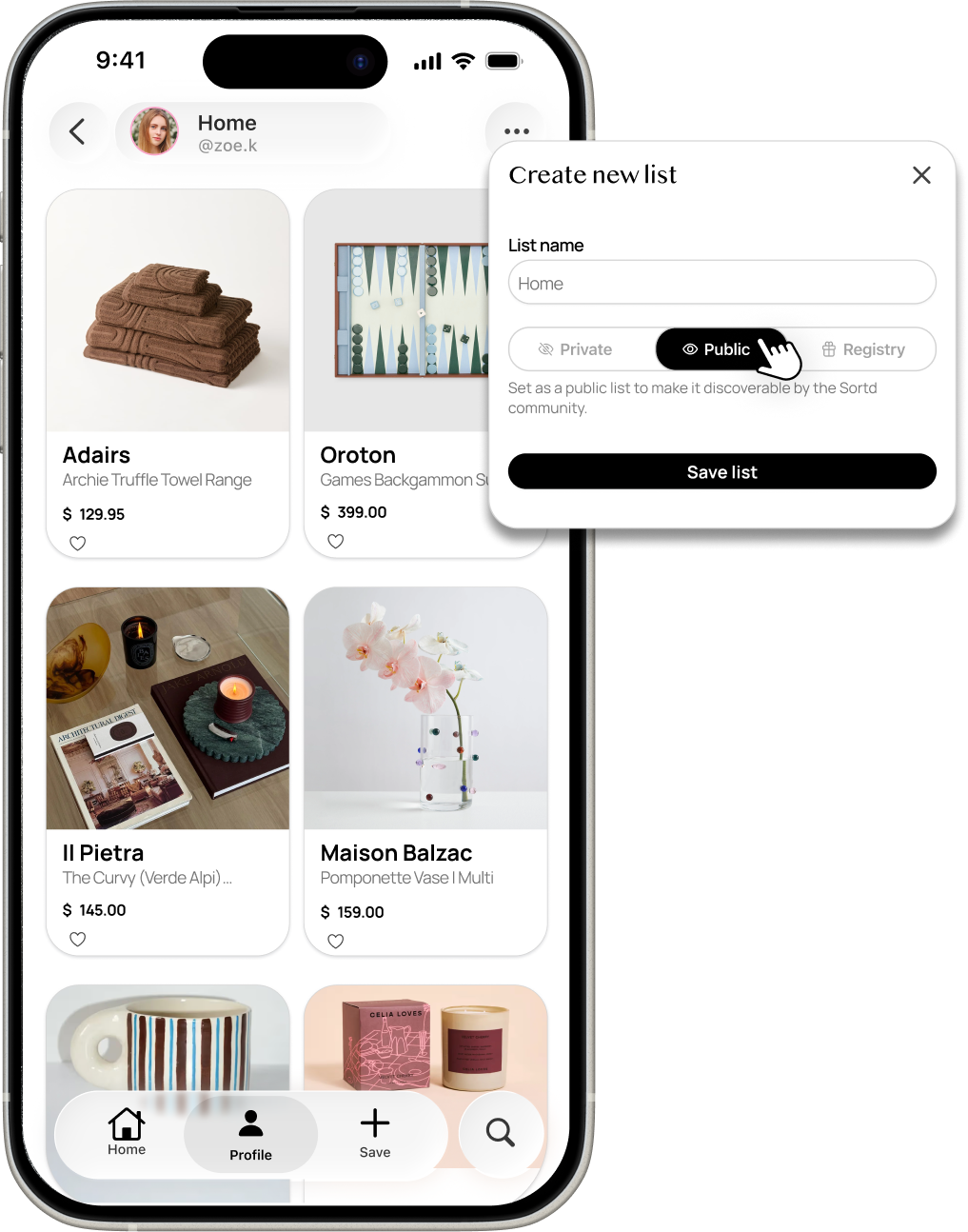
For sharing inspiration with the Sortd community.
Public lists are for when you want your saves to be discoverable by others - whether that’s for inspiration, curation, or sharing your taste.
Why create a Public list?
Make your list visible on the Discover feed
Let friends or the Sortd community search your username and find your lists
Inspire others with your finds
What others can do:
Bookmark your public lists to come back to anytime
Save items directly from your public lists into their own
Like items to let you know their favourites or add them to their liked folder
You can switch a list to public when you’re ready - and change it back to private at any time.
Registry

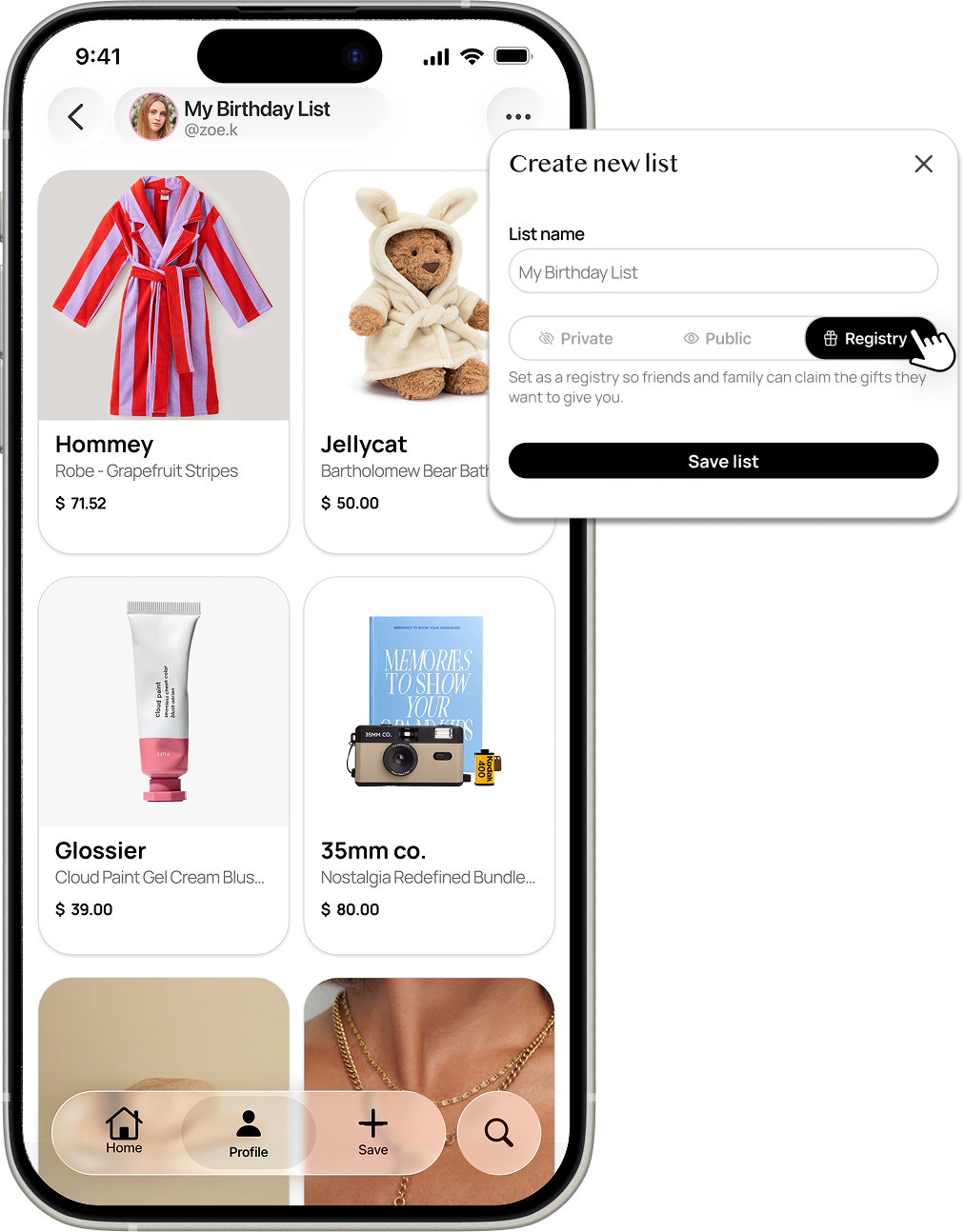
For gifting moments - without awkward double-ups.
Registry lists are designed specifically for gifting occasions like birthdays, baby showers, weddings, or holidays.
Why create a Registry?
Clearly show friends and family what you actually want
Avoid duplicate gifts
Make gifting easy and stress-free for everyone
How it works:
Anyone you share your registry with can view it without needing an account
If they want to reserve an item anonymously, they’ll need to create a Sortd account
As the list owner, you’ll only see that an item has been reserved - not who reserved it
That way, surprises stay surprises ✨
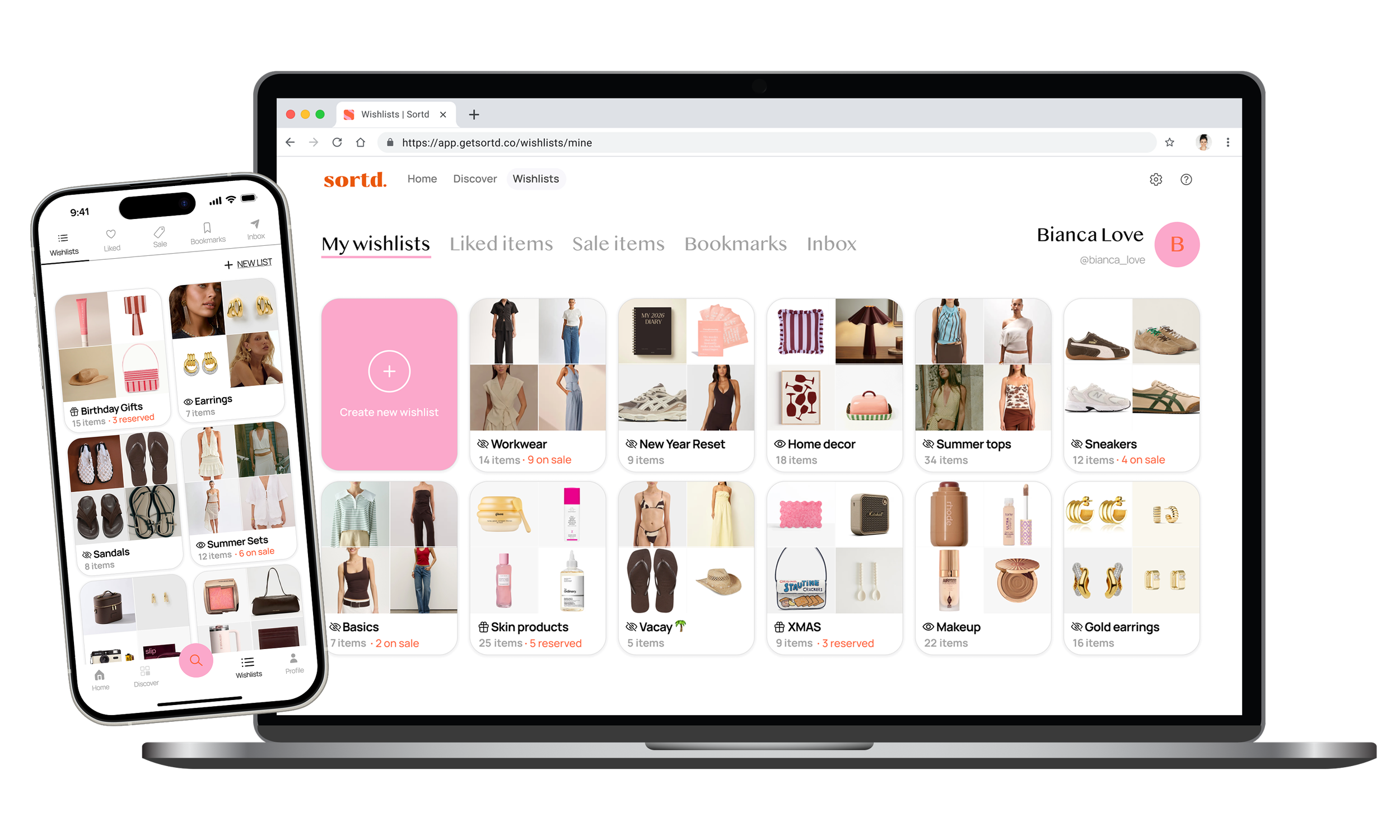
No screenshots or tabs allowed.
Instead, create wishlists to keep track of everything you want to buy, with Sortd.


FAQs
-
Sortd is your ultimate shopping wishlist app, designed to help you save and organise items from any online store. Whether you’re browsing on Safari, TikTok, Instagram or through our in-app browser, you can quickly add products to categorised wishlists. Categorise your finds, track everything you love, and get notified when prices drop. When you’re ready to buy, simply tap the item in your wishlist to head straight to the retailer’s site.
-
Yes! Sortd is completely free. No hidden fees, no subscriptions. Just a seamless way to organise your shopping across all your favourite stores.
-
There are a few easy ways to add items to your wishlists:
From your mobile:
From your mobile browser: Tap the share icon on any product page and select the Sortd app to save it.
Using the in-app browser: Tap the ‘Search’ icon in the Sortd app to browse any online store. When you find something you love, tap ‘Save to wishlist’.
From the Discover feed: Tap on an item you love, then tap ‘Save to wishlist’ to add it to one of your lists.
From your desktop:
Using the Chrome Extension: Add the Sortd Chrome Extension to your browser to save items directly while shopping on your desktop. Just click the Sortd icon to add products to your wishlist in seconds.
-
Yes! You can save from Safari, Instagram, TikTok and more. Just tap the share icon, select Sortd, and save the item to your wishlist.
-
When you’re ready to buy something, just tap ‘buy’ on the item in your wishlist, and we’ll take you straight to the original retailer’s website to check out.
-
Make sure push notifications are enabled for Sortd. We’ll let you know as soon as a saved item drops in price, so you never miss a deal.
-
Definitely. You can share any of your Sortd wishlists by tapping the ‘Share’ icon in the top right corner. Your wishlist opens as a simple webpage, so friends and family don’t need the Sortd app to view it. Perfect for birthdays, gifting or hint-dropping.
-
Yes - privacy is set on a list-by-list basis. When creating or editing a wishlist, you can choose to make it private (visible only to you) or public (visible in the Discover feed). Public wishlists are only shown in Discover once they contain 4 or more items. Even if a wishlist is private, you can still share it directly via a link, making it perfect for gifting or getting advice.
-
Head to the Discover tab in the Sortd app or web to explore public wishlists created by the Sortd community. You can search by title (like “Birthday Wishlist” or “Winter Wardrobe”) or by username (like @username) to find friends, influencers or specific lists. When you find a wishlist you love, you can tap items to save them to your own or bookmark the list it for later.
-
Tap the Bookmark icon on any public or shared wishlist to save it to your Bookmarked section for easy access later.
-
Yes! The Sortd Chrome Extension lets you save items while browsing on your desktop or laptop. Add products from any online store directly to your wishlist - perfect for big shopping days, planning a holiday wardrobe or late-night browsing.
-
While there’s no Android app just yet, you can still access all your wishlists through the Sortd web app at https://app.getsortd.co. Simply log in via your mobile browser - it's designed to work smoothly on all devices.
-
Occasionally, price, description or image information might display incorrectly. Contact us and we’ll fix it for you - we’re always working to make Sortd smarter and more accurate.